What you're building
OBS Studio composites your webcam and your meeting timeline into one video feed, then exposes it as a virtual camera. In your meeting app you simply pick "OBS Virtual Camera" instead of your webcam. Your agenda stays on screen for the entire call, quietly keeping everyone on time.
- Download OBS Studio (free, Windows/macOS/Linux)
- Your meeting must be marked Public link in the editor — OBS loads the page without a login.
Recommended · No chroma key needed
Path 1: Browser Source with a transparent background
- In OBS, create a Scene and add a Video Capture Device source — that's your webcam.
- Add a Browser source above the webcam in the Sources list.
- In the editor's Share panel, click 🎥 Copy OBS URL and paste it as the URL. It looks like:
https://agendaclock.com/meeting/<your-id>?view=overlay&chrome=0&transparent=1 - Set Width 1920, Height 1080 (or your canvas size).
- Done —
transparent=1renders the page with a real alpha channel, so your camera shows through automatically. No filters required.
💡 The
chrome=0 part hides on-screen hints and the view switcher so only the timeline is drawn.
Alternative · Window capture
Path 2: Window Capture + Chroma Key
If you'd rather show a normal browser window (or you're on a setup where the Browser source is unavailable):
- Open your timeline in a browser window:
…/meeting/<your-id>?view=overlay&chrome=0. The background is a solid blue #0047BB — that's intentional. - In OBS add a Window Capture source above your webcam and pick that browser window.
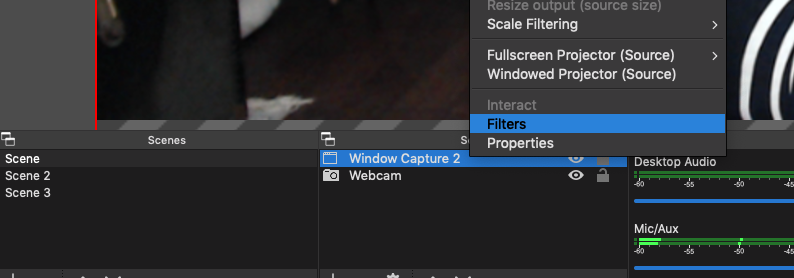
- Right-click the source → Filters → add Chroma Key.
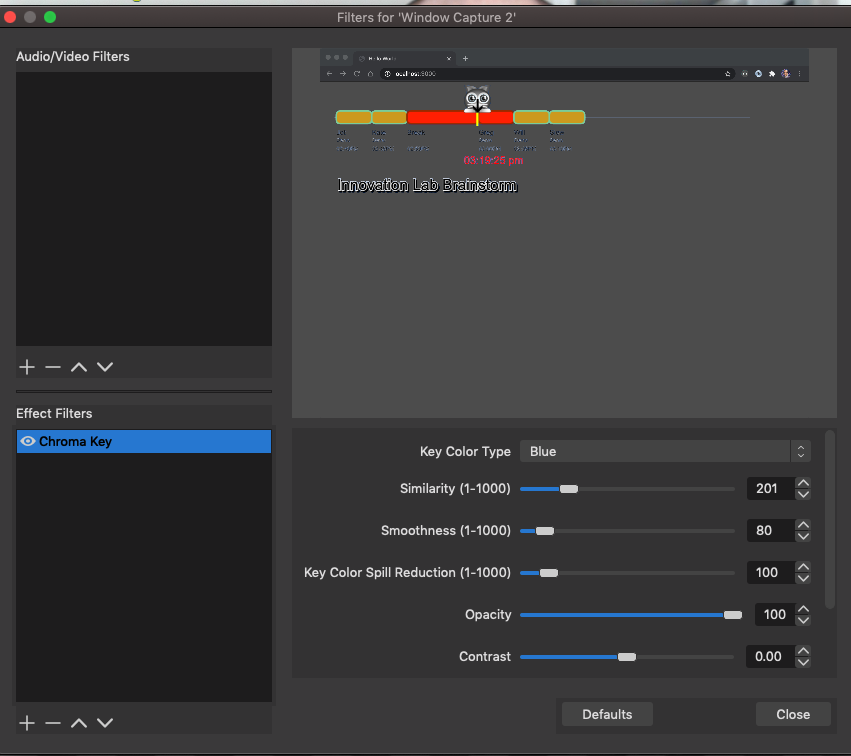
- Set Key Color Type to Blue (or Custom →
#0047BB) and tune Similarity until the blue disappears cleanly.
Go live: Start the Virtual Camera
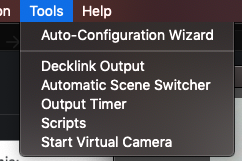
- In OBS click Start Virtual Camera (bottom-right, under Controls).
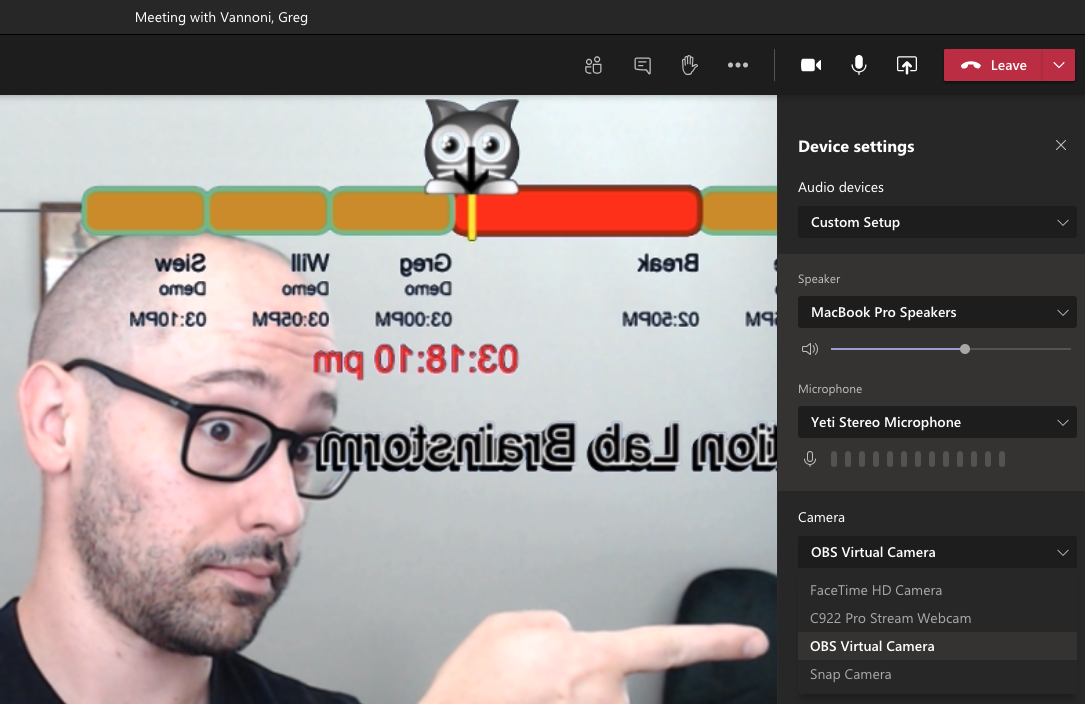
- In Zoom / Google Meet / Microsoft Teams, open the camera picker and select OBS Virtual Camera.
⚠️ On macOS, Microsoft Teams occasionally doesn't list virtual cameras due to code-signing restrictions. See the OBS forum thread for the current workaround.
Troubleshooting
| Symptom | Fix |
|---|---|
| Blue box instead of transparency | Meeting isn't Public (OBS sees the login page), or you're missing transparent=1 / the Chroma Key filter. In Path 2, raise the filter's Similarity. |
| Agenda is stale after editing | Right-click the Browser source → Refresh cache of current page, or toggle it off/on. |
| Help text or buttons visible on the overlay | Make sure the URL includes chrome=0. |
| Overlay too small / off-center | Set the Browser source to your canvas resolution (usually 1920×1080), then right-click → Transform → Fit to screen. |
More resources: free meeting agenda timer · timed agenda templates · how long should a meeting be?